Persisting/saving files to the domain storage account
If you need to persist/save a file (or a set of files) inside Databricks you
may want to use the persist_files() function from blipdataforge.
With this function, you can persist/save multiple files to the storage account
of the current domain that you are in.
Files in Databricks
There are multiple strategies that you can use to create and manage files at Databricks. There is actually a great article from Databricks that describes this subject in depth.
There are not only multiple styles of "paths", that you can use to describe the locations of your files, but there is also, multiple "types of locations" where you can save/persist your files. For example:
- you can save files inside a volume from the Unity Catalog;
- you can save files inside a Workspace folder;
- you can save files directly into an Azure Data Lake, using the ABFSS protocol;
- you can save files inside the ephemeral and local disk (i.e. the local filesystem) of the Databricks cluster that you are currently using;
The persist_files() function saves your files into a volume from the Unity Catalog.
Volumes from the Unity Catalog are, not only, the most modern and complete way to create and manage files
inside Databricks, but they are also, the strategy that integrates the best with the other solutions
produced by Data Platform, such as sending links to download files by email.
Usage example
To demonstrate the use of the persist_files(), we first need to create some files.
In the example below, I'm creating some CSV files by writing the data from a Spark DataFrame.
Notice from the path /local_disk0 that we are saving these files into
the local and ephemeral storage of the Databricks cluster.
Because this storage is ephemeral, you may want to use persist_files() to
copy these files into the landingzone storage associated with the current
domain, which is a persistent storage.
from blipdataforge import DataPlatform
from pyspark.sql import SparkSession
from datetime import date
from pyspark.sql import Row

spark = SparkSession.builder.getOrCreate()
data = [
  Row(id = 1, value = 28.3, date = date(2021,1,1)),
  Row(id = 2, value = 15.8, date = date(2021,1,1)),
  Row(id = 3, value = 20.1, date = date(2021,1,2)),
  Row(id = 4, value = 12.6, date = date(2021,1,3))
]

df = spark.createDataFrame(data)
file_path = "/local_disk0/tmp/table_test/"
df.write.mode("overwrite").csv(file_path)
Before we use the persist_files(), let's first investigate the files that we have created
from the previous commands. Spark DataFrames are always distributed, meaning that, they are
splitted into multiple partitions, and these partitions are scattered across the workers of
the current Spark Session. You can read more about it at
this section of the "Introduction to pyspark" book
You can see in the output below, the partitions of the Spark DataFrame (part-...)
written as CSV files. The remaining files inside the folder are files that represent
statuses from the Spark write process, and therefore, we can ignore them.
/local_disk0/tmp/table_test/_committed_1611297955259673513
/local_disk0/tmp/table_test/_committed_2369586526975359895
/local_disk0/tmp/table_test/_committed_8475885235137697843
/local_disk0/tmp/table_test/_committed_8990975055876416605
/local_disk0/tmp/table_test/_committed_vacuum715686643036159697
/local_disk0/tmp/table_test/_started_8990975055876416605
/local_disk0/tmp/table_test/part-00000-tid-899097505-c000.csv
/local_disk0/tmp/table_test/part-00001-tid-899097505-c000.csv
/local_disk0/tmp/table_test/part-00002-tid-899097505-c000.csv
/local_disk0/tmp/table_test/part-00003-tid-899097505-c000.csv
Suppose we want to copy these partition CSV files into our
persistent storage, now is time to use the persist_files()
function. This function copies a list of files to the
dedicated storage of your current Databricks domain,
and associates a Unity Catalog Volume with these files,
so that you can access these files from Databricks if you need them.
Each domain have a dedicated storage associated with it.
This storage is called the "landingzone" of the current domain.
When you use the persist_files() in your Databricks notebook, this
function automatically detects which Databricks workspace you are currently in,
and, as consequence, the landingzone storage associated
with your current domain.
In the example below, I'm using this function to copy the CSV files that contains the data from our Spark DataFrame, to this landingzone storage of my current Databricks domain.
Now, because persist_files() associates your files with a Unity Catalog Volume,
you need to provide a database name, and, a volume name to persist_files().
You can read more about Unity Catalog Volumes at this article.
For example, if you provide sales_files as the database name, and, sales_volume as the
volume name, then, the files copied by persist_files() will be available to you
inside the volume at the reference <domain-catalog>.sales_files.sales_volume.
The <domain-catalog> is the catalog associated with your current Databricks Workspace.
You can read more about this at the "A different catalog for each environment" section of the user guide.
partitions = [
    "/local_disk0/tmp/table_test/part-00000-tid-899097505-c000.csv",
    "/local_disk0/tmp/table_test/part-00001-tid-899097505-c000.csv",
    "/local_disk0/tmp/table_test/part-00002-tid-899097505-c000.csv",
    "/local_disk0/tmp/table_test/part-00003-tid-899097505-c000.csv"
]
dp = DataPlatform()
dp.persist_files(
    database="ingest_file",
    volume_name="new_dest",
    destination_folder="/ingest/sales/",
    files=partitions
)
After we execute this piece of code, a new volume will be created
inside the catalog of your current Databricks workspace at the reference
<domain-catalog>.ingest_file.new_dest, and the files listed
inside the partitions object will be copied to the folder
at the the path /ingest/sales/, inside this new volume.
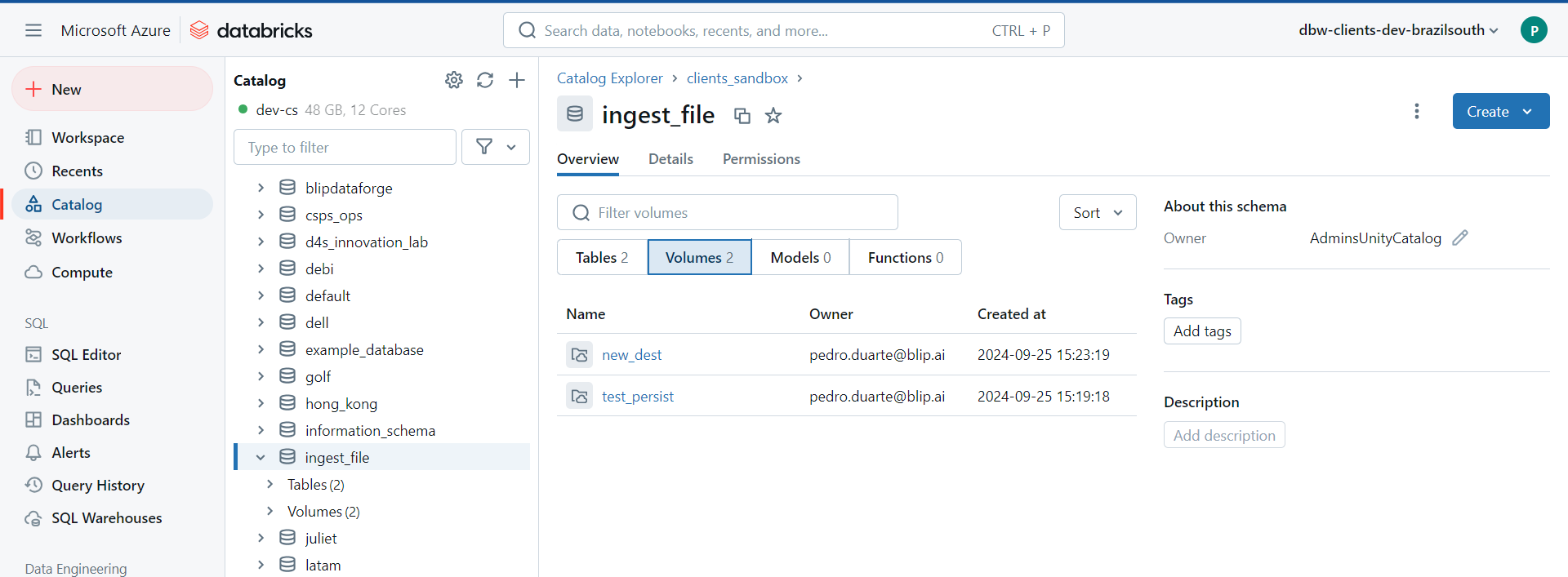
For demonstration purposes, I have executed the previous code examples in the DEV
Databricks Workspace of the clients domain (i.e. dbw-clients-dev-brazilsouth). The catalog associated with
this specific Databricks Workspace is the clients_sandbox catalog.
Therefore, the volume was created at the reference clients_sandbox.ingest_file.new_dest.
You can see this new volume created by persist_files() in the image below.
We can now access and use these files by using the path to them inside the Unity Catalog volume. In the example below, we are reading the lines from one of the partition files that we have copied to the Unity Catalog volume.